How Do You Block Your Number When Calling Someone
Have you ever needed to call or text someone but wanted to keep your phone number private? Maybe you're trying to avoid an ex-partner or a persistent salesperson. Or maybe you just prefer to keep your personal phone number hidden from strangers. Whatever your reason, blocking your number when making a call or sending a text is easier than you might think.
Blocking Your Caller ID on an iPhone
Step 1: Open Your Phone Settings
First, open the Settings app on your iPhone. Scroll down and tap on the Phone option.

Step 2: Select \"Show My Caller ID\"
Next, tap on \"Show My Caller ID.\" You should see a toggle switch that says \"Show My Caller ID.\" Make sure this is turned off.
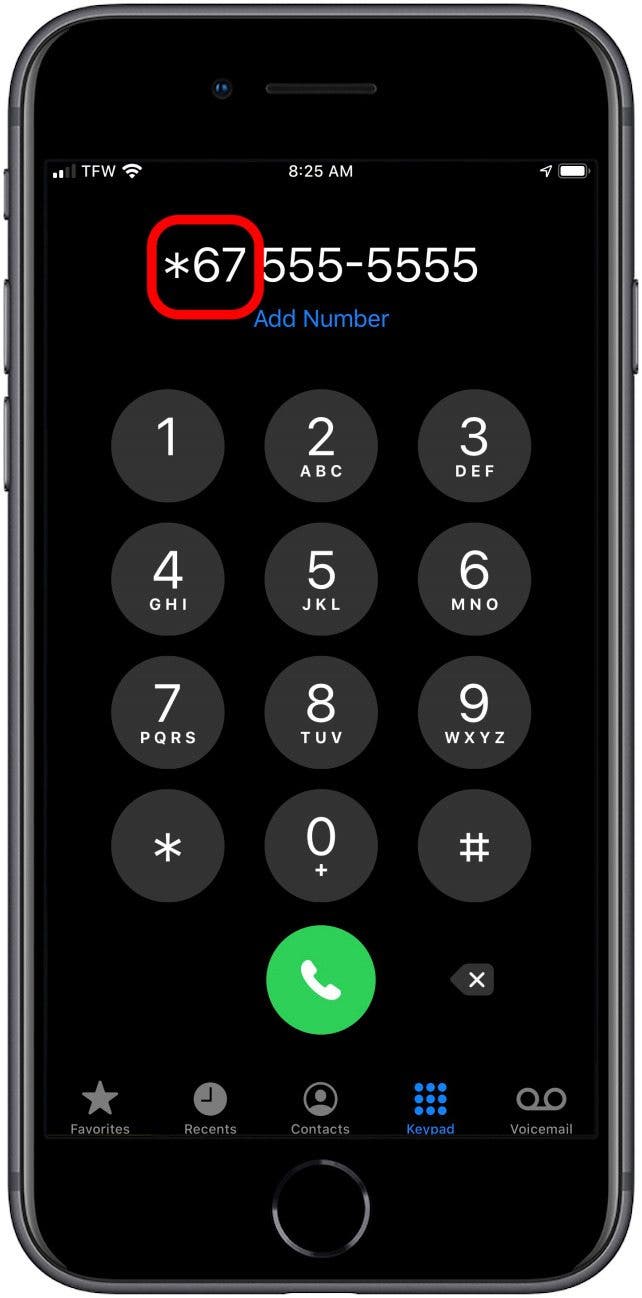
Step 3: Make Your Call
That's it! Now, when you make a call, your number will be hidden from the person you're calling. Instead, they'll see either \"Unknown,\" \"Blocked,\" or a similar message on their caller ID display.
Blocking Text Messages on an iPhone
Step 1: Open Your Messages App
To block someone from texting you, open your Messages app on your iPhone.
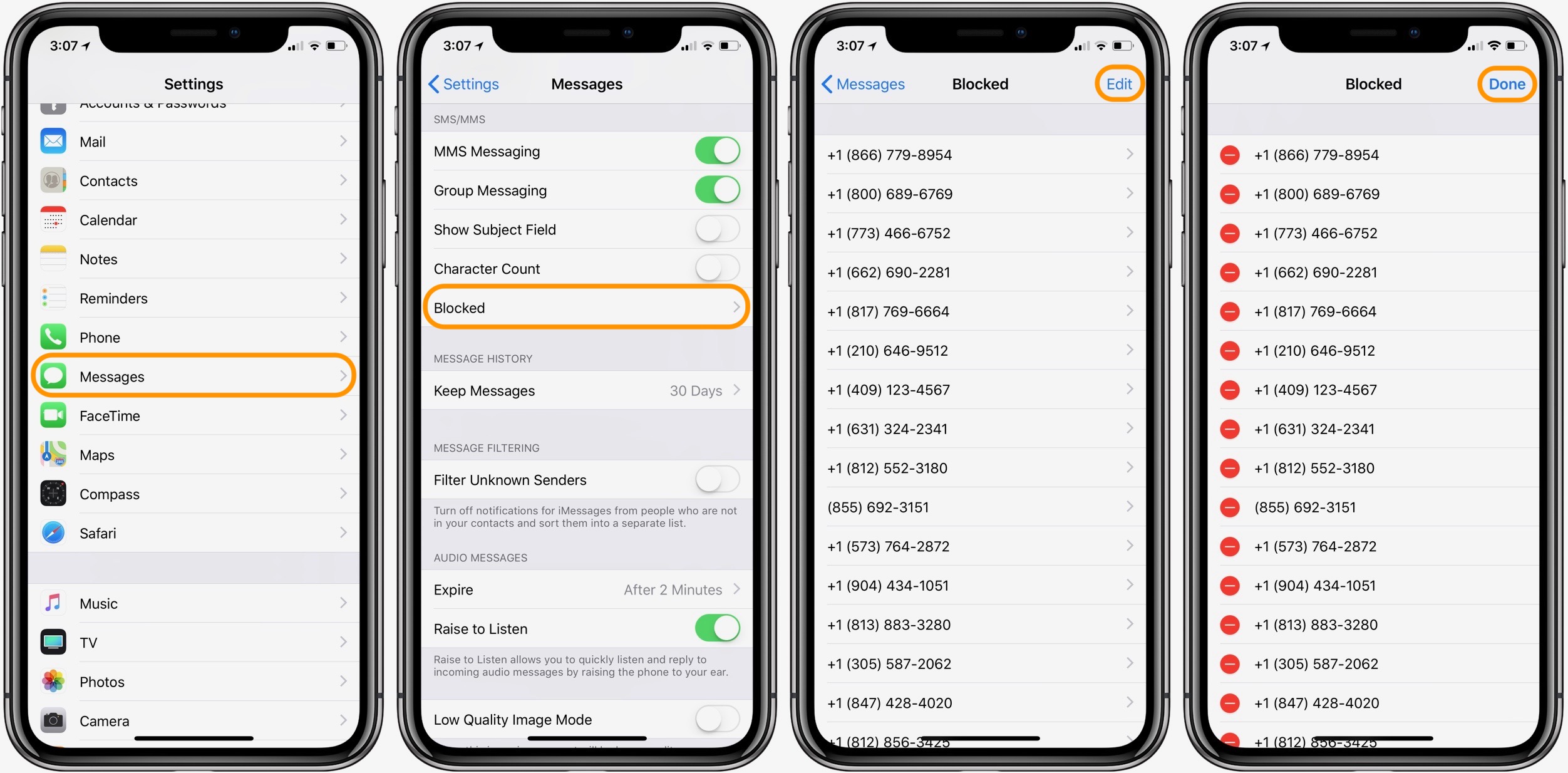
Step 2: Find the Conversation You Want to Block
Find the conversation with the person you want to block. Swipe left on the conversation, and tap on the \"More\" option.
Step 3: Select \"Block This Caller\"
Scroll down until you see the option to \"Block This Caller.\" Tap on it.
Step 4: Confirm That You Want to Block the Caller
You'll see a message that says, \"You will not receive phone calls, messages, or FaceTime from people on the block list.\" Tap on \"Block Contact\" to confirm that you want to block this person.
Blocking Your Caller ID on an Android
Step 1. Open Your Phone App
Open the Phone app on your Android phone.
Step 2: Tap on the Three Dots at the Top of the Screen
Next, tap on the three dots in the upper right-hand corner of the screen.
Step 3: Select \"Settings\"
Select \"Settings\" from the dropdown menu that appears.
Step 4: Tap on \"Calls\"
Scroll down until you see the option for \"Calls.\" Tap on it.
Step 5: Select \"Additional Settings\"
Select \"Additional Settings\" from the list of options.
Step 6: Tap on \"Caller ID\"
Find the option for \"Caller ID\" and tap on it.
Step 7: Choose \"Hide Number\"
Finally, choose the option to \"Hide Number.\"
Blocking Text Messages on an Android
Step 1: Open Your Messages App
Open the Messages app on your Android phone.
Step 2: Find the Conversation You Want to Block
Find the conversation with the person you want to block. Long-press on the conversation, and select the \"Block\" option.
Step 3: Confirm That You Want to Block the Caller
You'll see a message that says, \"Do you want to block messages and calls from this number?\" Tap on \"Block\" to confirm that you want to block this person.
Now that you know how to block your phone number when making calls and sending texts, you can keep your personal information private and avoid unwanted conversations. Whether you're using an iPhone or an Android phone, it only takes a few simple steps to protect your privacy.
One word of caution, though. Some people may not answer phone calls from blocked numbers, or they may assume that the call is spam. So use this feature judiciously and only when you really need it.
Another idea would be to use a disposable phone number app like Burner or Hushed. These apps give you a temporary phone number that you can use for calls and texts without revealing your real number. When you're done using the number, simply delete it.
No matter what method you choose, remember to always use good judgment and stay safe when communicating with others over the phone.
Find more articles about How Do You Block Your Number When Calling Someone
Post a Comment for "How Do You Block Your Number When Calling Someone"